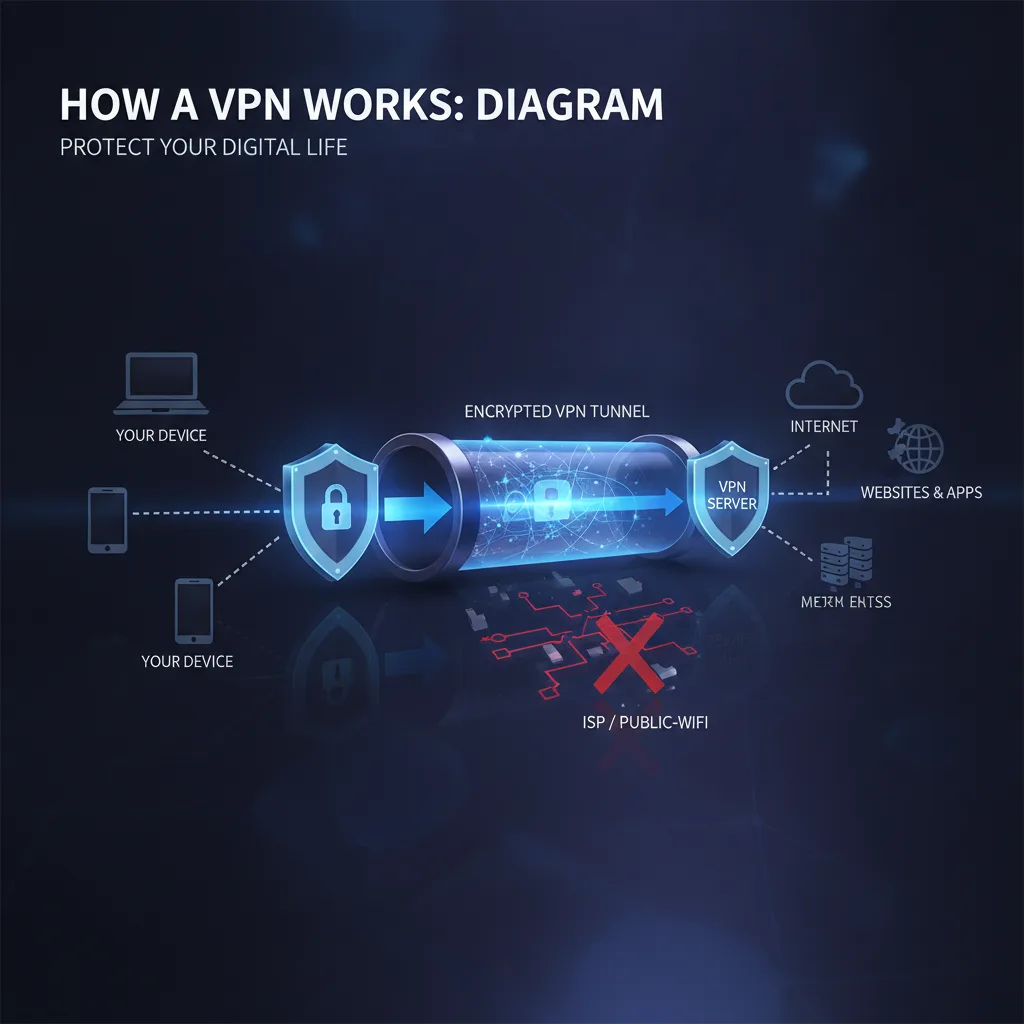
Comprender cómo funcionan los conceptos de VPN mediante diagramas transforma la VPN de un lenguaje tecnológico misterioso en un proceso visual claro que puedes ver y entender. Esta guía utiliza diagramas e ilustraciones paso a paso para mostrar exactamente lo que sucede cuando te conectas a un servidor VPN, desde el túnel encriptado hasta el enmascaramiento de IP y el enrutamiento del servidor.
Comprender los conceptos del diagrama de cómo funciona VPN transforma la VPN de una jerga tecnológica misteriosa a un proceso claro y visual que puedes ver y comprender. Esta guía utiliza diagramas e ilustraciones paso a paso para mostrar exactamente qué sucede cuando se conecta a un servidor VPN: desde el túnel cifrado hasta el enmascaramiento de IP y el enrutamiento del servidor.
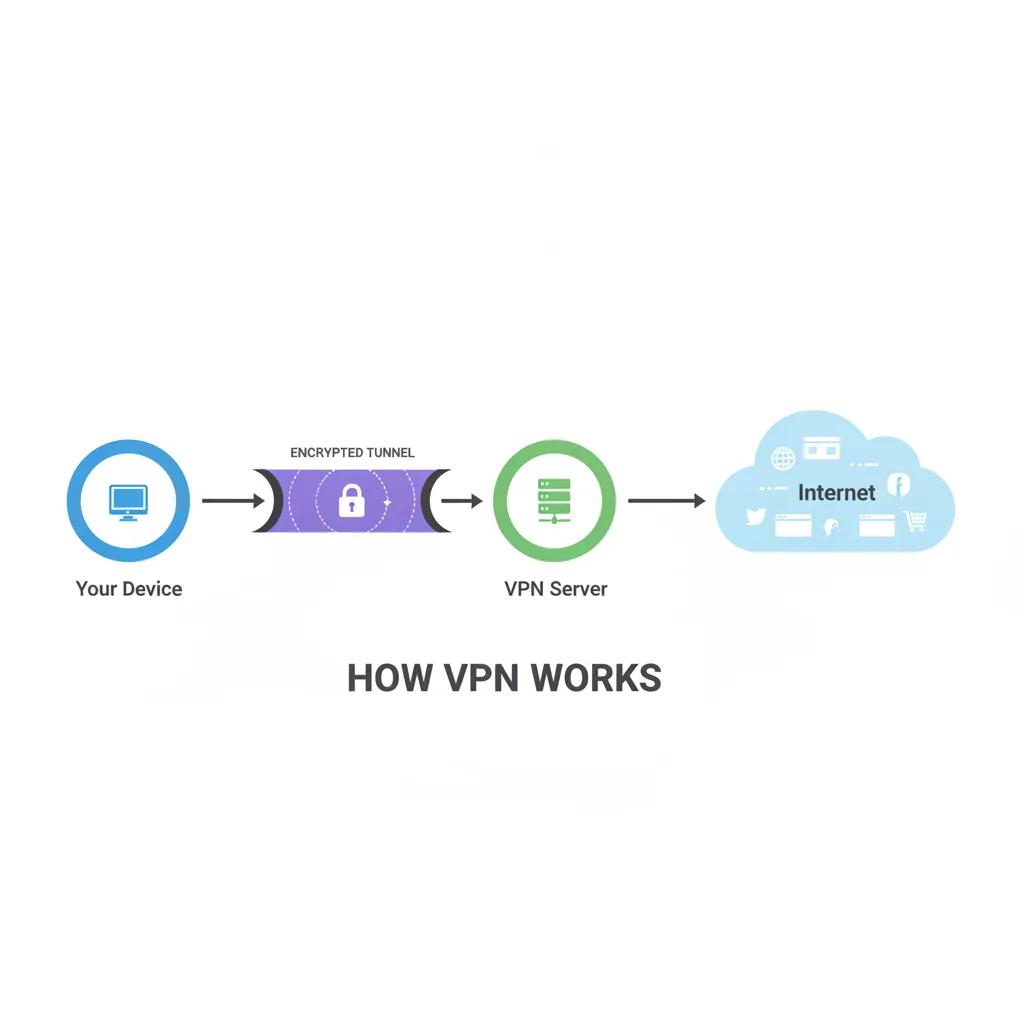
Ya sea que aprenda visualmente o simplemente quiera comprender la tecnología que protege su privacidad, estos diagramas revelan los mecanismos detrás de la protección VPN sin un lenguaje técnico abrumador.
Conclusiones clave:
- Las VPN crean un túnel cifrado entre su dispositivo y un servidor VPN, ocultando sus datos de los ISP y los piratas informáticos
- Su dirección IP real se reemplaza con la IP del servidor VPN, enmascarando su ubicación e identidad
- El proceso de conexión de 4 pasos establece seguridad, cifra datos, enruta a través de servidores y accede a Internet de forma anónima
- Los túneles VPN utilizan protocolos de cifrado como WireGuard para codificar sus datos, haciéndolos ilegibles para terceros
- Diferentes dispositivos (teléfonos, portátiles, enrutadores) utilizan el mismo proceso VPN fundamental con implementaciones específicas del dispositivo
¿Listo para ver la protección VPN en acción? Pruebe Fubble VPN y observe cómo cambia su dirección IP en tiempo real utilizando nuestras herramientas de verificación de IP.
Si primero necesita información básica, aprenda qué es una VPN o explore nuestra guía detallada paso a paso.
Descripción general de VPN: diagrama de antes y después
La forma más clara de entender cómo funciona una VPN es comparar su conexión a Internet antes y después de la activación de la VPN. Esta vista lado a lado revela la transformación fundamental.
Sin VPN (Conexión Directa)
Tu conexión a Internet desprotegida sigue una ruta simple pero expuesta:
Su dispositivo → Su ISP → El sitio web
En esta conexión directa:
- Su dirección IP real (por ejemplo, 203.0.113.45) es visible en todos los sitios web que visita
- Su proveedor de servicios de Internet ve todos los sitios web a los que accede
- Tus datos viajan sin cifrar a través de redes públicas (a menos que el sitio utilice HTTPS)
- Los sitios web, los anunciantes y los rastreadores identifican su ubicación y dispositivo
- Los piratas informáticos que utilizan redes Wi-Fi públicas pueden potencialmente interceptar sus datos
Ejemplo real: cuando visitas el sitio web de tu banco desde una cafetería, tu ISP registra "el usuario accedió a bank.com a las 2:15 p.m." y cualquiera que controle la red Wi-Fi puede ver el intento de conexión.
Con VPN (túnel cifrado)
Cuando activas una VPN, la ruta de conexión cambia por completo:
Su dispositivo → Túnel cifrado → Servidor VPN → El sitio web
Con protección VPN:
- Su dirección IP real está oculta; los sitios web ven la IP del servidor VPN (por ejemplo, 198.51.100.78)
- Tu ISP solo ve que te conectaste a un servidor VPN, no los sitios web que visitas
- Todos tus datos se cifran antes de salir de tu dispositivo
- Su ubicación geográfica parece ser dondequiera que se encuentre el servidor VPN
- Tus datos están protegidos contra la interceptación, incluso en redes Wi-Fi públicas no seguras
Mismo ejemplo con VPN: Cuando accedes a tu banco a través de Fubble VPN, tu ISP solo ve "usuario conectado al servidor VPN en Ámsterdam". El sitio web del banco recibe un visitante de Ámsterdam. El Wi-Fi de la cafetería muestra el flujo de datos cifrados, nada más.
Tabla comparativa: conexión directa frente a VPN
| Característica | Sin VPN | Con VPN |
|---|---|---|
| Visibilidad de la dirección IP | Su IP real expuesta | IP del servidor VPN mostrada |
| Datos Cifrado | Ninguno (a menos que HTTPS) | Cifrado de túnel completo |
| Monitoreo de ISP | Ve todos los sitios web | Ve solo la conexión VPN |
| Privacidad de ubicación | Ubicación real revelada | Ubicación del servidor VPN mostrado |
| Seguridad Wi-Fi pública | Vulnerable a la interceptación | Totalmente protegido |
| Prevención de seguimiento | Seguimiento fácil entre sitios | Reducción significativa |
La transformación ocurre instantáneamente cuando te conectas. En el momento en que tocas "Conectar" en tu aplicación VPN, cada dato que sale de tu dispositivo ingresa al túnel cifrado.
¿Cómo funciona una VPN? Diagrama de proceso de 4 pasos
El proceso de conexión VPN ocurre en cuatro etapas distintas. Cada paso se basa en el anterior para crear una protección completa.
Paso 1: Establecer una conexión segura
El proceso comienza cuando tocas "Conectar":
1. Su cliente (aplicación) VPN se comunica con el servidor VPN que seleccionó 2. El cliente y el servidor realizan un "apretón de manos": intercambian credenciales para verificar la identidad de cada uno 3. Acuerdan qué protocolo de cifrado usar (WireGuard, OpenVPN, IKEv2) 4. Las claves de autenticación se generan e intercambian de forma segura
Este apretón de manos dura entre 1 y 3 segundos. El estado de tu aplicación VPN cambia de "Desconectado" → "Conectando" → "Conectado".
Lo que ves: el icono de VPN cambia de color o muestra "Conectado".
Detrás de escena: su dispositivo y servidor crean un canal de comunicación seguro y autenticado que forma la base del túnel cifrado.
Paso 2: cifrar sus datos
Una vez que se establece la conexión, comienza el cifrado automático:
1. Cada dato que sale de su dispositivo se cifra: sitios web, mensajes, descargas, todo. 2. El cifrado codifica sus datos utilizando algoritmos complejos (AES-256, ChaCha20) 3. Los datos cifrados se vuelven ilegibles para cualquiera, excepto para el servidor VPN que posee la clave de descifrado. 4. Su ISP solo ve los datos cifrados que fluyen a la dirección IP del servidor VPN
Ejemplo técnico: si busca en Google "cómo cifrar archivos", su ISP normalmente verá "el usuario buscó en Google 'cómo cifrar archivos'". Con el cifrado VPN, su ISP solo ve datos confusos: 8f3a9c2e7b1d... que fluyen hacia el servidor VPN.
El cifrado se produce de forma instantánea y automática para cada aplicación que utiliza su conexión a Internet: navegadores, aplicaciones de mensajería, servicios de streaming y juegos.
Paso 3: enrutamiento a través del servidor VPN
Tus datos cifrados ahora viajan al servidor VPN:
1. Los paquetes de datos cifrados salen de su dispositivo y viajan a la ubicación del servidor VPN 2. El servidor VPN recibe sus datos cifrados y los descifra usando claves compartidas 3. El servidor reenvía su solicitud original al sitio web de destino 4. Para el sitio web, la solicitud parece provenir de la IP y la ubicación del servidor VPN
Cambio geográfico: si estás en San Francisco y te conectas a un servidor de Londres, los sitios web pensarán que estás navegando desde Londres. Así es como funciona el acceso al VPN streaming.
Este enrutamiento añade una latencia mínima (20-100 milisegundos para servidores de calidad), apenas perceptible en la navegación normal.
Paso 4: acceder a Internet de forma anónima
La etapa final completa el circuito seguro:
1. El sitio web de destino envía su respuesta (página web, video, archivo) al servidor VPN 2. El servidor VPN cifra esta respuesta 3. La respuesta cifrada regresa a través del túnel hasta su dispositivo 4. Su cliente VPN descifra los datos y los entrega a su navegador o aplicación
Resultado: Accedes a Internet con total privacidad. Tu ISP no puede ver lo que estás haciendo, los sitios web no pueden ver tu ubicación real y tus datos están protegidos contra interceptaciones.
Este ciclo de cuatro pasos se repite continuamente (milisegundos por ciclo) para cada solicitud y respuesta mientras está conectado. Es tan rápido que no notarás ninguna diferencia excepto privacidad y seguridad mejoradas.
Comprensión del túnel VPN (diagrama)
El "túnel VPN" es el concepto central de la tecnología VPN: una vía segura y cifrada a través de la cual viajan sus datos.
¿Qué es un túnel cifrado?
Un túnel cifrado es un canal de comunicación protegido entre su dispositivo y el servidor VPN. No es un túnel físico sino una ruta lógica segura que envuelve su tráfico de Internet.
El túnel tiene tres características clave:
1. Encapsulación: sus paquetes de datos originales se envuelven en capas adicionales de cifrado e información de enrutamiento 2. Cifrado: Los paquetes encapsulados se codifican mediante algoritmos criptográficos que los hacen ilegibles 3. Autenticación: Ambos puntos finales verifican la identidad del otro para evitar ataques de intermediarios
Representación visual del túnel:
- Vista exterior: Su ISP, administradores de red y posibles piratas informáticos solo ven datos cifrados que fluyen hacia la IP de un servidor VPN
- Vista interior: su actividad real en Internet (sitios web visitados, mensajes enviados, archivos descargados) permanece completamente privada
- Punto de salida: el servidor VPN desenvuelve el cifrado y envía su solicitud a su destino
El túnel existe mientras su conexión VPN permanezca activa. Si la conexión se cae, el túnel desaparece y su tráfico vuelve a la ruta directa sin protección (a menos que tenga un interruptor de apagado habilitado).
Protocolos de cifrado explicados de forma sencilla
La fuerza del túnel depende del protocolo de cifrado utilizado para crearlo. Los diferentes protocolos equilibran velocidad, seguridad y compatibilidad.
Tabla comparativa de protocolos:
| Protocolo | Cifrado | Velocidad | Mejor Para | Compatibilidad |
|---|---|---|---|---|
| WireGuard | ChaCha20 | El más rápido | Streaming, juegos, dispositivos móviles | Moderno dispositivos |
| OpenVPN | AES-256 | Moderado | Máxima compatibilidad | Todos plataformas |
| IKEv2/IPSec | AES-256 | Rápido | Conmutación de red móvil | iOS, macOS nativa |
WireGuard (moderno y rápido):
- Utiliza criptografía de última generación con un código mínimo (4000 líneas frente a las más de 100 000 de OpenVPN)
- Velocidades de conexión y transferencia de datos extremadamente rápidas
- Rápidamente restablece túneles cuando cambias de red (Wi-Fi a celular)
- Ideal para: streaming, juegos y dispositivos móviles
OpenVPN (Probado y Flexible):
- Código abierto y auditado minuciosamente por investigadores de seguridad
- Seguridad sólida con niveles de cifrado configurables
- Funciona prácticamente en todas las plataformas
- Ideal para: máxima compatibilidad, usuarios centrados en la seguridad
IKEv2/IPSec (estable y compatible con dispositivos móviles):
- Excelente para mantener conexiones durante cambios de red
- Soporte nativo en iOS y macOS (no se requiere aplicación)
- Un poco más lento que WireGuard pero muy estable
- Ideal para: usuarios de dispositivos móviles que cambian con frecuencia entre Wi-Fi y datos móviles
Fubble VPN utiliza cifrado de clase WireGuard para ofrecer máxima seguridad y excelente rendimiento. El túnel que crea protege tus datos sin ralentizar tu conexión.
Red de servidor VPN: cómo la ubicación afecta su conexión
El servidor VPN que elijas determina dónde parece originarse tu tráfico de Internet y qué tan rápido funciona tu conexión.
Elegir el servidor adecuado (diagrama)
Los proveedores de VPN operan servidores en múltiples ubicaciones en todo el mundo. La elección del servidor afecta tanto al rendimiento como al acceso al contenido.
Factores de selección del servidor:
Distancia y Velocidad:
- Servidores cercanos: velocidades más rápidas debido a una distancia física más corta (menor latencia)
- Servidores distantes: mayor latencia pero acceso a contenido específico de la región
- Alcance óptimo: dentro de 1000 millas normalmente agrega menos de 20 ms de latencia
Carga del servidor:
- Los servidores menos concurridos ofrecen velocidades más rápidas
- Los proveedores de calidad muestran la carga del servidor en tiempo real (por ejemplo, "Nueva York: 45 % de capacidad")
- La selección automática a menudo elige el servidor más rápido disponible
Servidores especializados:
- Optimizado para streaming: configurado para funcionar de manera confiable con Netflix, Hulu, BBC iPlayer
- Servidores P2P: permiten descargar torrents y compartir archivos
- Doble VPN: dirige el tráfico a través de dos servidores para una máxima privacidad
Escenario de ejemplo: un usuario de Los Ángeles quiere ver BBC iPlayer. Se conectan a un servidor de Londres. El flujo de tráfico se convierte en: 1. Dispositivo de Los Ángeles → Túnel cifrado → Servidor VPN de Londres → Servidores de la BBC 2. La BBC ve una dirección IP de Londres y otorga acceso a contenido exclusivo del Reino Unido 3. El contenido se transmite de regreso a través de la misma ruta
Para una navegación diaria y máxima velocidad, conéctese al servidor más cercano. Para acceder a contenido específico de una región, conéctese a un servidor en el país requerido.
Conexiones de múltiples saltos versus conexiones de un solo servidor
La mayoría de las conexiones VPN utilizan un único servidor, pero algunas situaciones se benefician del enrutamiento de múltiples saltos (doble VPN).
Conexión de servidor único (estándar):
- Ruta: Su dispositivo → Servidor VPN → Internet
- Una capa de cifrado
- Rendimiento más rápido (latencia añadida de 10 a 30 ms)
- Adecuado para el 99% de los casos de uso
Conexión de múltiples saltos (doble VPN):
- Ruta: Su dispositivo → Servidor VPN A → Servidor VPN B → Internet
- Dos capas de cifrado
- Su tráfico se cifra dos veces y se enruta a través de dos países diferentes
- Incluso si un servidor estuviera comprometido, su IP original permanece oculta
- Velocidades más lentas (latencia añadida de 50 a 100 ms, reducción de velocidad del 30 al 50 %)
Cuándo utilizar saltos múltiples:
- Periodistas o activistas en países restrictivos que requieren el máximo anonimato
- Manejo de información altamente confidencial
- Situaciones que no requieren ningún vínculo entre su IP real y su actividad en línea
Realidad de la compensación: el salto múltiple duplica la sobrecarga de cifrado y la distancia de enrutamiento, lo que afecta significativamente la velocidad. Para la mayoría de los usuarios (streaming, navegación, banca, trabajo remoto), un único servidor VPN de alta calidad proporciona una protección excelente sin afectar el rendimiento.
¿Qué sucede con su dirección IP? (Comparación visual)
Su dirección IP es el identificador único de su dispositivo en Internet. Revela su ubicación y permite el seguimiento. Las VPN resuelven esto reemplazando tu IP real con la IP del servidor VPN.
Su IP real frente a su IP VPN
Sin VPN:
- Consulte los sitios web:
203.0.113.45(la IP asignada por su ISP) - Ubicación revelada: San Francisco, CA, Estados Unidos
- ISP identificado: Comcast Cable
- Potencial de seguimiento: los anunciantes crean perfiles basados en su IP en todos los sitios web
Con VPN (conectado al servidor de Ámsterdam):
- Ver sitios web:
198.51.100.78(IP del servidor VPN) - Ubicación revelada: Ámsterdam, Países Bajos
- ISP identificado: proveedor de alojamiento VPN (no su ISP real)
- Seguimiento interrumpido: su IP real está oculta; atributos de seguimiento a la IP VPN compartida
El cambio de IP es instantáneo. Puede verificarlo utilizando nuestra herramienta de verificación de IP antes y después de conectarse; la IP y la ubicación que se muestran cambiarán inmediatamente.
Detalle crítico: Varios usuarios comparten las mismas direcciones IP del servidor VPN. Cuando te conectas a un servidor de Londres, estás compartiendo esa IP con cientos o miles de otros usuarios Fubble VPN. Esta "agrupación de IP" hace que sea casi imposible identificar a usuarios individuales.
Cómo te ven los sitios web
Cuando visitas un sitio web con protección VPN, los registros del servidor del sitio muestran la información del servidor VPN en lugar de la tuya.
Registro del servidor web sin VPN:
IP: 203.0.113.45
Ubicación: San Francisco, CA, EE. UU.
ISP: Cable Comcast
Agente de usuario: Chrome 120.0 / Windows 11
Marca de tiempo: 2025-01-25 14:23:45 UTC
Registro del servidor web con VPN (servidor de Ámsterdam):
IP: 198.51.100.78
Ubicación: Ámsterdam, NH, NL
ISP: DataCenter Hosting B.V.
Agente de usuario: Chrome 120.0 / Windows 11
Marca de tiempo: 2025-01-25 14:23:45 UTC
Qué cambió: dirección IP y ubicación. Lo que permaneció igual: Huella digital del navegador y marca de tiempo.
Limitación importante: las VPN ocultan tu IP y ubicación, pero no eliminan todo el seguimiento. Los sitios web aún pueden utilizar cookies, huellas digitales del navegador y credenciales de inicio de sesión para identificarlo. Para un anonimato total, combine la protección VPN con navegadores centrados en la privacidad y administración de cookies.
Aplicaciones del mundo real:
- Restricciones geográficas: los servicios de streaming comprueban la ubicación IP para determinar el acceso al contenido; las VPN evitan estas restricciones
- Discriminación de precios: los sitios de comercio electrónico muestran diferentes precios según la ubicación de la IP; las VPN revelan precios regionales
- Eludir la censura: los países que bloquean sitios web verifican las IP de los visitantes; las VPN brindan acceso mostrando la IP de un país diferente
El enmascaramiento de IP que proporcionan las VPN es la base de la privacidad en línea y la herramienta más efectiva para ocultar su ubicación.
Flujos de conexión VPN comunes por dispositivo
La tecnología VPN funciona de manera idéntica en todos los dispositivos, pero cada plataforma tiene detalles de implementación específicos que vale la pena comprender.
VPN en el teléfono (iOS/Android Diagrama)
Las conexiones VPN móviles implican consideraciones únicas debido al cambio de red y la duración de la batería.
iOS Flujo de conexión: 1. Abra la aplicación Fubble VPN y toque "Conectar" 2. iOS muestra el cuadro de diálogo de permiso de VPN (solo la primera vez) 3. Se instala el perfil de configuración de VPN (usando el protocolo IKEv2 o WireGuard) 4. El túnel VPN se establece en 2-3 segundos 5. El icono de VPN aparece en la barra de estado (confirmando la protección activa)
Android Flujo de conexión: 1. Inicie la aplicación Fubble VPN y seleccione el servidor 2. Android muestra el cuadro de diálogo de solicitud de conexión 3. El servicio VPN se inicia y crea una interfaz de red virtual 4. Todo el tráfico se dirige a través del túnel VPN automáticamente 5. El icono de llave aparece en la barra de notificaciones
Funciones específicas para móviles:
- Cambio de red: pasar de Wi-Fi a celular activa la reconexión automática de VPN
- Interruptor de interrupción: si la VPN se cae, Internet se detiene hasta que se vuelve a conectar (evita fugas de IP)
- Optimización de la batería: protocolos modernos como WireGuard minimizan el consumo de batería (aumento del 2 al 5 %)
- VPN por aplicación: excluir aplicaciones específicas del túnel VPN (aplicaciones bancarias que bloquean VPN)
Práctica recomendada: habilite "VPN siempre activa" en la configuración del dispositivo para garantizar una protección constante, incluso durante las actualizaciones de aplicaciones o el reinicio del dispositivo.
Obtenga más información en nuestra guía sobre cómo funciona VPN en teléfonos.
VPN en computadora portátil/escritorio (Windows/Diagrama de Mac)
Las conexiones VPN de escritorio ofrecen más opciones de configuración y normalmente ofrecen velocidades más rápidas debido a la estabilidad de la energía y la red.
Flujo de conexión Windows: 1. Inicie la aplicación Fubble VPN 2. Seleccione la ubicación del servidor en el mapa o la lista 3. Haga clic en "Conectar": la aplicación solicita permiso de administrador (solo la primera vez) 4. Se activa el adaptador de red VPN 5. Windows actualiza la tabla de enrutamiento para enviar todo el tráfico a través de VPN 6. El icono de escudo aparece en la bandeja del sistema
macOS Flujo de conexión: 1. Abra Fubble VPN desde Aplicaciones o la barra de menú 2. Elija la ubicación del servidor 3. Haga clic en "Conectar": macOS solicita permiso de VPN (solo la primera vez) 4. El túnel VPN se establece utilizando la red nativa macOS 5. El icono de VPN aparece en la barra de menú 6. Todo el tráfico de la red se enruta a través del túnel cifrado
Ventajas del escritorio:
- Protección a tiempo completo: los equipos de escritorio mantienen conexiones VPN estables durante horas o días
- Mejor rendimiento: las conexiones Ethernet por cable ofrecen velocidades VPN más rápidas (300-500 Mbps en conexiones gigabit)
- Túnel dividido: elige qué aplicaciones usan VPN y cuáles usan conexiones directas
- Configuración avanzada: Selección de protocolo, configuración DNS, enrutamiento personalizado
Casos de uso comunes de escritorio:
- Trabajo remoto: conexiones seguras a los recursos de la empresa
- Torrenting: intercambio de archivos P2P con protección IP
- Juegos: Reducción del retraso al elegir ubicaciones óptimas para el servidor
- Transmisión: acceda a contenido bloqueado por región en pantallas más grandes
Los clientes de escritorio a menudo incluyen funciones adicionales como bloqueo de anuncios, protección contra malware y seguridad Wi-Fi que mejoran la funcionalidad principal de VPN.
VPN en enrutador (protección para todo el hogar)
La instalación de una VPN en su enrutador protege automáticamente todos los dispositivos de su red, sin necesidad de aplicaciones individuales.
Flujo de configuración de VPN del enrutador: 1. Inicie sesión en el panel de administración del enrutador (normalmente http://192.168.1.1) 2. Navegue a la configuración de VPN (requiere firmware de enrutador compatible con VPN) 3. Ingrese los detalles y credenciales del servidor Fubble VPN 4. Configure el protocolo VPN (OpenVPN o WireGuard) 5. Guarde la configuración y active la conexión VPN 6. Todos los dispositivos que se conectan al enrutador usan VPN automáticamente túnel
Dispositivos protegidos automáticamente:
- Televisores inteligentes y dispositivos de streaming (Roku, Apple TV, Fire Stick)
- Consolas de juegos (PlayStation, Xbox, Nintendo Switch)
- Dispositivos IoT (altavoces inteligentes, cámaras de seguridad, termostatos)
- Dispositivos invitados (visitantes que se conectan a su Wi-Fi)
- Dispositivos sin soporte VPN nativo
Beneficios de la VPN del enrutador:
- Configurar y olvidar: una configuración protege todos los dispositivos actuales y futuros
- Sin límites de dispositivos: Incluso los planes VPN con límites de dispositivos funcionan (el enrutador cuenta como un dispositivo)
- Seguridad en toda la red: Todos los dispositivos se benefician automáticamente
Compensaciones:
- Todos los dispositivos utilizan la misma ubicación del servidor (sin selección por dispositivo)
- Velocidades más lentas en enrutadores económicos (el cifrado VPN requiere potencia de procesamiento)
- Configuración inicial más compleja
- Es más difícil activar o desactivar VPN rápidamente
Enfoque recomendado: utilice VPN de enrutador para dispositivos domésticos inteligentes y hardware de transmisión mientras mantiene aplicaciones VPN individuales en teléfonos y portátiles para mayor flexibilidad cuando necesite diferentes ubicaciones de servidor.
Conclusiones clave: qué significan estos diagramas para usted
Comprender la mecánica de VPN le ayuda a utilizar los servicios VPN de forma eficaz y a evaluar a los proveedores con precisión.
Mecánicas esenciales que ahora comprendes:
1. El cifrado es automático: una vez conectado, cada pieza de datos que sale de su dispositivo se cifra sin configuración 2. La dirección IP cambia instantáneamente: los sitios web ven la IP del servidor VPN en el momento en que se conecta 3. El túnel protege todo: Todas las aplicaciones que usan su conexión a Internet se benefician simultáneamente 4. La velocidad depende de la distancia y la carga: Elija servidores cercanos para el rendimiento, servidores distantes para el acceso al contenido 5. Varios dispositivos logran el mismo resultado: Ya sea teléfono, computadora portátil o enrutador, la protección VPN principal funciona de manera idéntica
Aplicaciones prácticas:
- Seguridad del Wi-Fi público: el túnel cifrado evita que los piratas informáticos intercepten datos en las redes de cafeterías y aeropuertos
- Acceso de streaming: el enmascaramiento de IP permite el acceso a contenido restringido a países específicos
- Privacidad de los ISP: el cifrado evita que su proveedor de Internet vea qué sitios web visita
- Privacidad de ubicación: los sitios web no pueden determinar su ubicación geográfica real
Lo que no hacen las VPN:
- No te hagas completamente anónimo (las cookies, los inicios de sesión y las huellas digitales del navegador aún permiten el seguimiento)
- No protege contra malware (aunque algunas VPN incluyen funciones antimalware)
- No impida que los sitios web recopilen datos que usted proporcione voluntariamente
- No garantice el acceso a todo el contenido restringido geográficamente (los servicios de streaming bloquean activamente algunos servidores VPN)
Los diagramas de esta guía le muestran exactamente lo que sucede detrás de escena. Cuando te conectas a Fubble VPN, activas el cifrado de nivel empresarial, enrutas el tráfico a través de servidores seguros y ocultas tu identidad digital de rastreadores, ISP y amenazas.
Pruebe Fubble VPN: vea cómo los diagramas cobran vida
¿Listo para experimentar el túnel VPN usted mismo? Fubble VPN transforma la compleja tecnología que hemos diagramado en una simple protección con un solo toque.
Qué hace que Fubble VPN sea diferente:
- Velocidad de clase WireGuard: Los protocolos de cifrado modernos ofrecen seguridad sin ralentizaciones
- Red global de servidores: conéctese a servidores de todo el mundo para obtener un rendimiento y un acceso al contenido óptimos
- Conexión con un solo toque: El complejo proceso de 4 pasos ocurre automáticamente en segundos
- Compatibilidad con múltiples dispositivos: proteja su teléfono, computadora portátil, tableta y más con una sola cuenta
- Funcionamiento transparente: Verifica tu protección VPN en tiempo real con nuestras herramientas
Descargue Fubble VPN hoy y vea el túnel cifrado en acción. Su primera conexión le proporcionará una prueba inmediata de todo lo diagramado en esta guía: su dirección IP cambiará, sus datos se cifrarán y su privacidad en línea estará protegida.
Preguntas frecuentes
¿Cómo puedo visualizar mi conexión VPN?
La mayoría de las aplicaciones VPN muestran el estado de la conexión, la ubicación actual del servidor y su nueva dirección IP. Verifique que su VPN esté funcionando visitando una herramienta de verificación de IP antes y después de conectarse; su dirección IP y ubicación deben cambiar para coincidir con el servidor VPN. Algunas aplicaciones incluyen gráficos de ancho de banda en tiempo real que muestran datos cifrados que fluyen a través del túnel. La pantalla de conexión de Fubble VPN muestra su nueva IP, ubicación del servidor y hora de conexión.
¿Un túnel VPN realmente oculta todo?
El túnel VPN cifra todo el tráfico de Internet que sale de su dispositivo y oculta su dirección IP de los sitios web. Sin embargo, no oculta la información que usted proporciona voluntariamente (credenciales de inicio de sesión, datos personales en formularios) ni impide todos los formularios de seguimiento (cookies, huellas digitales del navegador). Para obtener la máxima privacidad, combine la protección VPN con navegadores centrados en la privacidad, eliminación regular de cookies y prácticas cuidadosas para compartir datos.
¿Por qué mi diagrama de VPN muestra dos capas?
Los diagramas de VPN muestran la ruta de la red física (dispositivo → ISP → Internet) y el túnel lógico cifrado (dispositivo → servidor VPN → destino) como capas separadas porque operan simultáneamente. Sus datos viajan físicamente a través de la infraestructura de su ISP, pero el cifrado los hace ilegibles. Piense en ello como enviar una carta sellada por servicio postal: la ruta física es visible, pero el contenido está oculto.
¿Puedo ver el cifrado en mi túnel VPN?
El cifrado ocurre a nivel de paquete, por debajo de lo que los usuarios regulares pueden observar. Las herramientas de monitoreo de red (como Wireshark) mostrarían paquetes de datos cifrados que fluyen entre tu dispositivo y el servidor VPN, apareciendo como un galimatías. Estos datos ininteligibles prueban que el cifrado está funcionando. Los usuarios normales no necesitan ver este detalle técnico; solo verifiquen que su VPN está conectada y confíen en que el cifrado los está protegiendo.
¿Cómo afecta la ubicación del servidor VPN al diagrama de conexión?
La ubicación del servidor determina el camino físico que recorren tus datos y qué dirección IP ven los sitios web. Los servidores cercanos crean túneles más cortos y rápidos con menor latencia (20-40ms). Los servidores lejanos hacen que los datos viajen más lejos (mayor latencia, 80-150ms) pero parecen originarse desde esa ubicación. El cifrado y la seguridad permanecen idénticos sin importar la distancia; solo cambian la velocidad y tu ubicación aparente según la elección del servidor.